Border Union Ram Sales Portal   
Ram Sales Green Form Entry
Border Union Ram Sales Online Green Form Entry

As of 2023 it will be possible for vendors to submit their green consignment forms via the Border Union Ram Sales web site. These notes provide a brief guide to help you enter the ram details for your lots starting by logging into the system, recording your CPH numbers and Flock Numbers and entering the tag numbers for each of your lots.

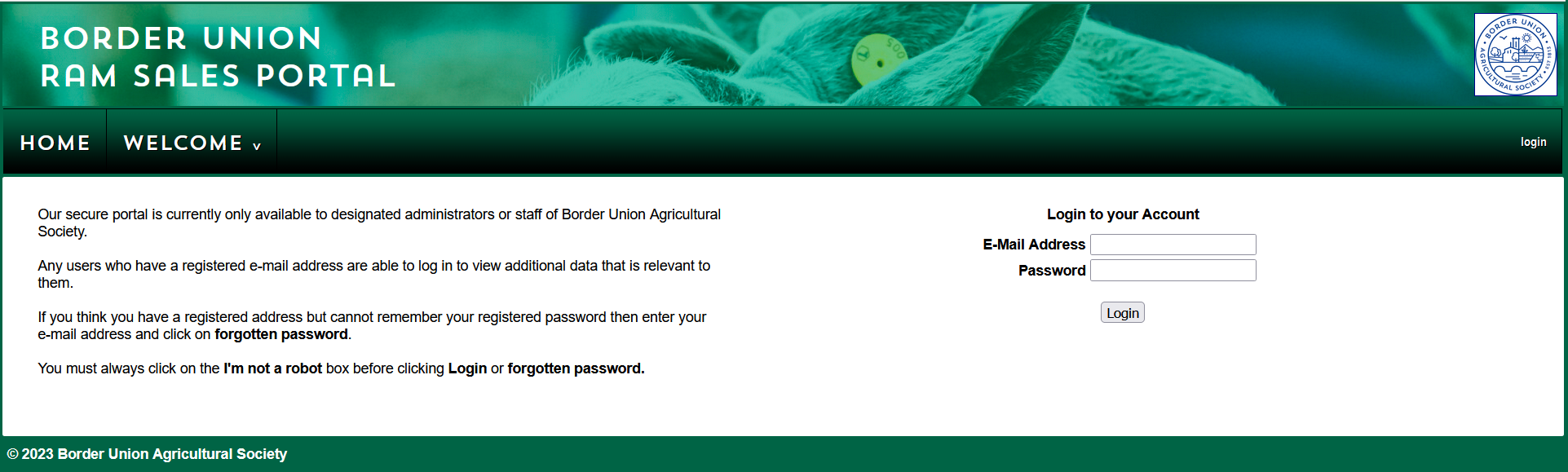
The web address for the ram sales system is: ramsales.borderunion.co.uk and this leads you to the login form page.


Contents


1. Setting Your Password and Logging In

If this is the first time that you have used the web site then the first thing you need to do is set your password. To do this enter the e-mail address that you registered with your auctioneer. Click in the Password box and a link will appear for forgotten/new password?

If you click or tap on this link then a password reset message will be sent to your e-mail address. This message will contain a link that will direct you back to the web site allowing you to enter your new password. In future you may use the same method if you forget the password that you have provided. 

Note that passwords must have at least eight characters and contain a combination of at least one number, at least one small letter and at least one capital letter.

If your e-mail address does not appear to have been registered for the ram sales then please contact the Border Union office using the contact form.

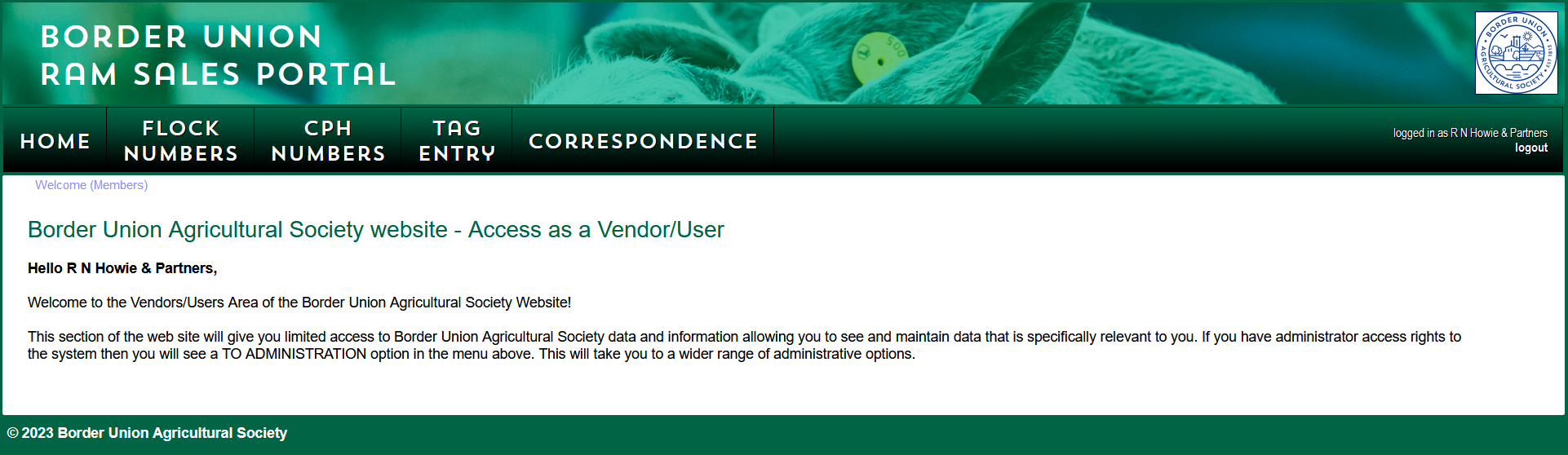
Once you have set a password and logged in you will be taken to the welcome page and the menu along the top will change to show the options available to you.
2. The Menu

The vendor menu contains five options: 

Flock Numbers which allows you to maintain the list of flock numbers that are relevant to the rams you are selling;

CPH Numbers which allows you to record your CPH (County Parish Holding)  number (or numbers if you use more than one);

Tag Entry where you can record the tags numbers for the rams being sold in each of your lots;

Correspondence which shows a history of correspondence sent to you through the system. Note that currently this is limited to password reset messages;

Help which leads you to any useful Help pages such as this one.

3. Flock Numbers

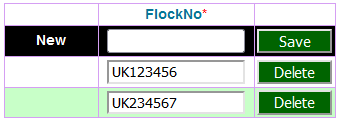
The flock numbers form lists any flock numbers that you have used (or may use) when entering tag numbers for your rams. The flock number consists of two letters (typically UK) followed by six digits. 

To add a new flock number enter the value into the flock no column of the black New row and then click Save.

You can make corrections directly by editing any flock numbers that are already in your list. Such changes are saved immediately.

You may also Delete flock numbers that you no longer intend to use.


4. CPH Numbers

Any CPH (County Parish Holding) numbers that your rams are being supplied from should be made available through the CPH Numbers form. 

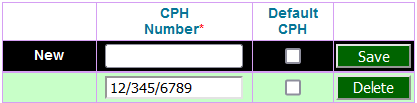
As with flock numbers you may add new CPH Numbers by entering a value into the CPH Number column of the New row and clicking Save.

An existing entry can be edited directly and such changes are saved immediately.

You may remove a CPH number which is no longer in use by clicking the Delete button.

One CPH number should be ticked as the Default CPH. This CPH number will be used for lots where no CPH number has been specified.
5. Tag Entry

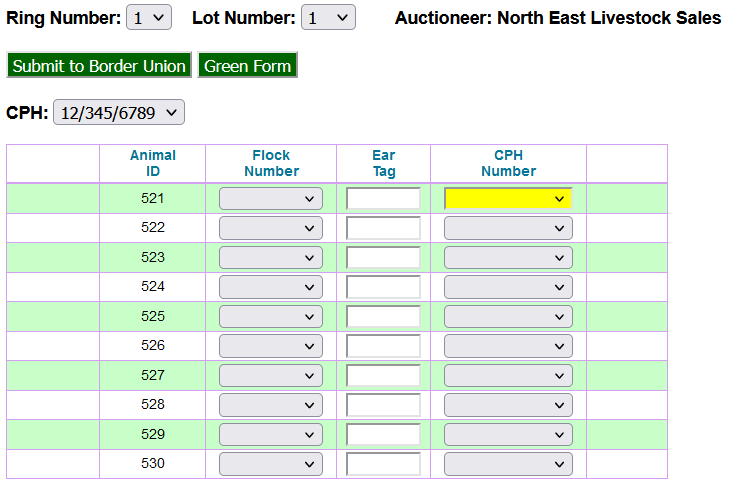
The tag numbers for the rams in your consignment are entered in the Tag Entry form. Before entering these numbers you should ensure that the correct ring number and lot number are shown in the drop down boxes at the top. Only rings and lots for your own consignments will be available to select. Once selected the auctioneer for your lot will be displayed to the right of the lot number.

The CPH Number drop down at the top allows you to choose the CPH number for this lot. Note that it is possible for individual animals to come from a different CPH in which case you should select the CPH number for that ram in the CPH number column within the table.

You will see the animal ID (ram number) pre-recorded in the first column of the table. It is very important that the tag numbers that you record correspond accurately with these numbers. There are two components to each tag number: the flock number which is selected from a drop down of possible flock numbers, and the ear tag which is a five digit number.

You should choose the flock number first and then enter the five digit number. If the ram is not forwarded then you should enter NF in the ear tag column.
6. Submitting to the Border Union

When you have completed the ear tags for all rams in your consignment and recorded those that are not being fulfilled as NF (not forwarded) you are ready to submit this lot to the Border Union. To do this you should click on the Submit to Border Union button. 

Checks are made at this point to ensure that all tags have been entered and at least a CPH number has been assigned to this lot.

Once a lot has been submitted it is available to the Border Union to import into their local ram sales database. However if you realise that you need to make further changes there will be a short period during which you may click on a Recall Submission button in order to continue editing. 

Once the Border Union has imported your submission no further changes will be possible through the web site. However it will be possible to make manual changes to your printed 'green' form and deliver them to the gate when you arrive at the ram sale.

7. The Green Form

Once you have entered and submitted your tag details you should use the Green Form button to view and print this form which should be taken with you to hand in at the gate of the showgrounds at Kelso. If you have to make changes after submitting and before you arrive then they should be made manually on this form.


© 2026 Border Union Agricultural Society
follow us on social media